Seamless integration between fzf-lua and claudecode.nvim
claude-fzf.nvim is a professional Neovim plugin that perfectly integrates the powerful file selection capabilities of fzf-lua with the AI context management features of claudecode.nvim, providing an exceptional workflow experience for developers using Claude Code.
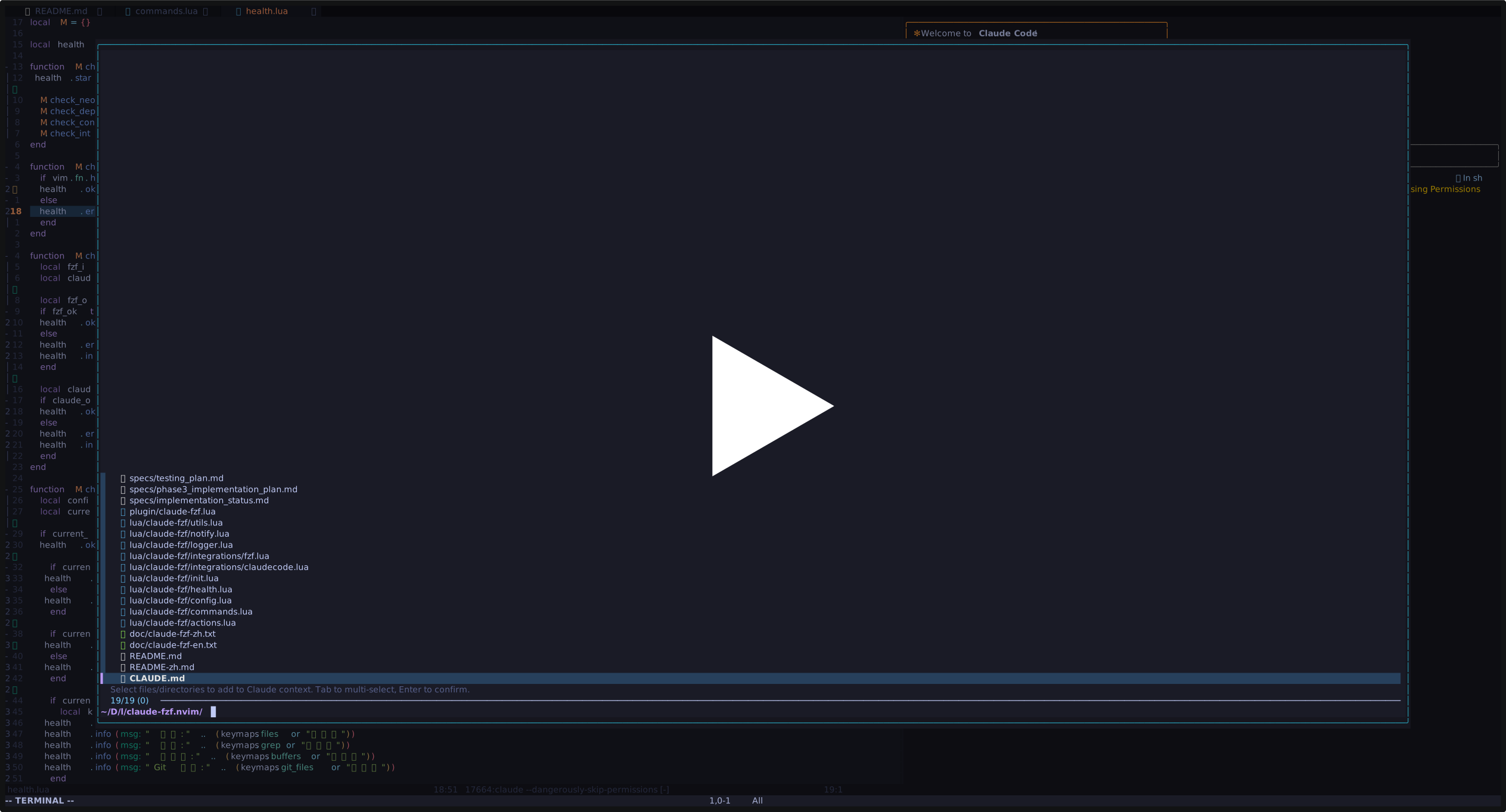
- 🚀 Batch File Selection: Use fzf-lua's multi-select functionality to batch add files to Claude context
- 🔍 Smart Search Integration: Search with grep and send relevant code snippets directly to Claude
- 🌳 Intelligent Context Extraction: Tree-sitter based syntax-aware context detection
- 📁 Multiple Pickers: Support for files, buffers, Git files, directory files and more selection methods
- ⚡ Performance Optimized: Lazy loading, caching, and batch processing ensure smooth experience
- 🎨 Visual Feedback: Progress indicators and status notifications
- 🛠️ Highly Configurable: Rich configuration options and custom keymaps
- 🔧 Health Check: Built-in diagnostics to ensure proper environment setup
- Neovim: >= 0.9.0
- Required Plugins:
- fzf-lua - Fuzzy finder interface
- claudecode.nvim - Claude Code integration
- Optional Dependencies:
- nvim-treesitter - Smart context extraction
{
  "pittcat/claude-fzf.nvim",
  dependencies = {
    "ibhagwan/fzf-lua",
    "coder/claudecode.nvim"
  },
  opts = {
    auto_context = true,
    batch_size = 10,
    -- 可选:配置键位映射(默认为空,不会占用任何按键)
    keymaps = {
      files = "<leader>cf",
      grep = "<leader>cg",
      buffers = "<leader>cb",
      git_files = "<leader>cgf",
      directory_files = "<leader>cd",
    },
  },
  cmd = { "ClaudeFzf", "ClaudeFzfFiles", "ClaudeFzfGrep", "ClaudeFzfBuffers", "ClaudeFzfGitFiles", "ClaudeFzfDirectory" },
  -- 或者使用 lazy.nvim 的 keys 配置(二选一)
  -- keys = {
  --   { "<leader>cf", "<cmd>ClaudeFzfFiles<cr>", desc = "Claude: Add files" },
  --   { "<leader>cg", "<cmd>ClaudeFzfGrep<cr>", desc = "Claude: Search and add" },
  --   { "<leader>cb", "<cmd>ClaudeFzfBuffers<cr>", desc = "Claude: Add buffers" },
  --   { "<leader>cgf", "<cmd>ClaudeFzfGitFiles<cr>", desc = "Claude: Add Git files" },
  --   { "<leader>cd", "<cmd>ClaudeFzfDirectory<cr>", desc = "Claude: Add directory files" },
  -- },
}" Add to your init.vim or vimrc
Plug 'ibhagwan/fzf-lua'
Plug 'coder/claudecode.nvim'
Plug 'pittcat/claude-fzf.nvim'
" Then run :PlugInstall
" Configure in init.vim (using Vimscript)
lua << EOF
require('claude-fzf').setup({
auto_context = true,
batch_size = 10,
keymaps = {
files = "<leader>cf",
grep = "<leader>cg",
buffers = "<leader>cb",
git_files = "<leader>cgf",
},
})
EOF
" Or if using init.lua, add to the file:
" require('claude-fzf').setup({
" auto_context = true,
" batch_size = 10,
" })Installation Steps:
- Add the above Plug configuration to your
~/.vimrcor~/.config/nvim/init.vim - Restart Neovim or reload configuration:
:source % - Run install command:
:PlugInstall - Wait for installation to complete
- Restart Neovim and enjoy the new features!
Quick Installation Verification:
:ClaudeFzfHealth  " Check plugin health status
:ClaudeFzfFiles " Test file pickeruse {
"pittcat/claude-fzf.nvim",
requires = {
"ibhagwan/fzf-lua",
"coder/claudecode.nvim"
},
config = function()
require('claude-fzf').setup({
auto_context = true,
batch_size = 10,
})
end
}require('claude-fzf').setup({
-- Basic settings
batch_size = 5, -- Batch processing size
show_progress = true, -- Show progress indicators
auto_open_terminal = true, -- Auto open Claude terminal
auto_context = true, -- Enable smart context detection
-- Notification configuration
notifications = {
enabled = true, -- Enable notifications
show_progress = true, -- Show start progress notifications
show_success = true, -- Show completion notifications
show_errors = true, -- Show error notifications
use_snacks = true, -- Prefer snacks.nvim if available
timeout = 3000, -- Notification timeout (ms)
},
-- Logging configuration
logging = {
level = "INFO", -- TRACE, DEBUG, INFO, WARN, ERROR
file_logging = true, -- Enable file logging
console_logging = true, -- Enable console logging
show_caller = true, -- Show caller location
timestamp = true, -- Show timestamps
},
-- Keymap settings (默认为空,需要主动配置才生效)
keymaps = {
files = "<leader>cf", -- File picker (设置为空字符串 "" 禁用)
grep = "<leader>cg", -- Search picker (设置为空字符串 "" 禁用)
buffers = "<leader>cb", -- Buffer picker (设置为空字符串 "" 禁用)
git_files = "<leader>cgf", -- Git files picker (设置为空字符串 "" 禁用)
directory_files = "<leader>cd", -- Directory files picker (设置为空字符串 "" 禁用)
},
-- fzf-lua configuration
fzf_opts = {
preview = {
border = 'sharp',
title = 'Preview',
wrap = 'wrap',
},
winopts = {
height = 0.8, -- Window height ratio
width = 0.8, -- Window width ratio
backdrop = 60, -- Background transparency
}
},
-- Directory search configuration
directory_search = {
directories = {
-- Add your custom directories here
-- Example:
-- screenshots = {
-- path = vim.fn.expand("~/Desktop"),
-- extensions = { "png", "jpg", "jpeg" },
-- description = "Screenshots"
-- }
},
default_extensions = {}, -- Empty means all files
},
-- Claude integration configuration
claude_opts = {
auto_open_terminal = true, -- Auto open terminal after sending
context_lines = 5, -- Additional context lines
source_tag = "claude-fzf", -- Source tag
},
})重要说明:插件默认不会设置任何键位映射,避免占用用户的按键。你需要主动配置才能启用键位映射。
require('claude-fzf').setup({
  keymaps = {
    files = "<leader>cf",         -- 启用文件选择器键位映射
    grep = "<leader>cg",          -- 启用搜索选择器键位映射
    buffers = "<leader>cb",       -- 启用缓冲区选择器键位映射
    git_files = "<leader>cgf",    -- 启用Git文件选择器键位映射
    directory_files = "<leader>cd", -- 启用目录文件选择器键位映射
  },
}){
"pittcat/claude-fzf.nvim",
keys = {
{ "<leader>cf", "<cmd>ClaudeFzfFiles<cr>", desc = "Claude: Add files" },
{ "<leader>cg", "<cmd>ClaudeFzfGrep<cr>", desc = "Claude: Search and add" },
{ "<leader>cb", "<cmd>ClaudeFzfBuffers<cr>", desc = "Claude: Add buffers" },
{ "<leader>cgf", "<cmd>ClaudeFzfGitFiles<cr>", desc = "Claude: Add Git files" },
{ "<leader>cd", "<cmd>ClaudeFzfDirectory<cr>", desc = "Claude: Add directory files" },
},
}vim.keymap.set('n', '<leader>cf', ':ClaudeFzfFiles<CR>', { desc = 'Claude: Add files' })
vim.keymap.set('n', '<leader>cg', ':ClaudeFzfGrep<CR>', { desc = 'Claude: Search and add' })
vim.keymap.set('n', '<leader>cb', ':ClaudeFzfBuffers<CR>', { desc = 'Claude: Add buffers' })
vim.keymap.set('n', '<leader>cgf', ':ClaudeFzfGitFiles<CR>', { desc = 'Claude: Add Git files' })
vim.keymap.set('n', '<leader>cd', ':ClaudeFzfDirectory<CR>', { desc = 'Claude: Add directory files' })| Command | Description |
|---|---|
:ClaudeFzfFiles |
Use fzf to select files to send to Claude |
:ClaudeFzfGrep |
Use fzf grep to search and send to Claude |
:ClaudeFzfBuffers |
Use fzf to select buffers to send to Claude |
:ClaudeFzfGitFiles |
Use fzf to select Git files to send to Claude |
:ClaudeFzfDirectory |
Use fzf to select files from specific directories |
:ClaudeFzf [subcommand] |
Generic command supporting subcommands |
:ClaudeFzfHealth |
Check plugin health status |
:ClaudeFzfDebug [option] |
Debug tools and log management |
插件默认不设置键位映射,以下是建议的键位映射配置:
| 建议按键 | 功能 |
|---|---|
<leader>cf |
打开文件选择器 |
<leader>cg |
打开搜索选择器 |
<leader>cb |
打开缓冲区选择器 |
<leader>cgf |
打开Git文件选择器 |
<leader>cd |
打开目录文件选择器 |
配置方法请参考上面的"键位映射配置"章节
In fzf pickers:
| Shortcut | Function |
|---|---|
Tab |
Multi-select/deselect |
Enter |
Confirm selection and send to Claude |
Ctrl-y |
Send with smart context |
Ctrl-l |
Copy to clipboard with @ prefix |
Ctrl-d |
Send directory (files picker only) |
Alt-a |
Select all/deselect all |
Esc |
Cancel and exit |
-- Setup plugin
require('claude-fzf').setup(opts)

-- File picker
require('claude-fzf').files(opts)

-- Search picker
require('claude-fzf').grep_add(opts)

-- Buffer picker
require('claude-fzf').buffers(opts)

-- Git files picker
require('claude-fzf').git_files(opts)

-- Directory files picker
require('claude-fzf').directory_files(opts)

-- Get current configuration
require('claude-fzf').get_config()---@class ClaudeFzf.Config
---@field batch_size number Batch processing size
---@field show_progress boolean Show progress
---@field auto_open_terminal boolean Auto open terminal
---@field auto_context boolean Smart context
---@field keymaps table<string, string> Keymaps
---@field fzf_opts table fzf-lua configuration
---@field claude_opts table Claude integration configurationRun health check to ensure plugin is properly configured:
:ClaudeFzfHealthHealth check will verify:
- Neovim version compatibility
- Required dependencies installation
- Configuration validity
- Integration functionality availability
The directory files picker allows you to quickly search and select files from your configured directories with optional file type filtering.
The directory files picker is completely user-configurable. No directories are predefined - you must configure the directories you want to use in your setup.
Configure directories first, then use:
:ClaudeFzfDirectory " Shows configured directory selectorKeyboard shortcut:
<leader>cd " Open directory pickerProgrammatic usage:
-- Show directory selector (only works if directories are configured)
require('claude-fzf').directory_files()

-- Direct access to specific directory (if configured)
require('claude-fzf').directory_files({ directory = 'screenshots' })Add your own directories in the configuration:
require('claude-fzf').setup({
  directory_search = {
    directories = {
      -- Add your custom directories
      screenshots = {
        path = vim.fn.expand("~/Desktop"),
        extensions = { "png", "jpg", "jpeg" },
        description = "Screenshots"
      },
      my_configs = {
        path = vim.fn.expand("~/.config"),
        extensions = { "lua", "vim", "json", "yaml" },
        description = "Config Files"
      },
      project_docs = {
        path = vim.fn.expand("~/Projects/docs"),
        extensions = { "md", "txt", "rst" },
        description = "Project Documentation"
      }
    }
  }
})- Directory Selection: First, choose from available directories
- File Filtering: Files are automatically filtered by configured extensions
- Multi-selection: Use Tab to select multiple files
- Send to Claude: Press Enter to send selected files
- ✅ Smart Path Validation: Checks if directories exist before searching
- ✅ Extension Filtering: Only show files matching configured extensions
- ✅ Performance Optimized: Uses
fdcommand for fast file discovery - ✅ Visual Status: Directory availability shown with ✓/✗ indicators
- ✅ Unicode Support: Properly handles Unicode filenames and paths
local claude_fzf = require('claude-fzf')

-- Custom file picker
claude_fzf.files({
  prompt = 'Select config files> ',
  cwd = '~/.config',
  fzf_opts = {
    ['--header'] = 'Select config files to add to Claude'
  }
})-- Disable all notifications
require('claude-fzf').setup({
notifications = {
enabled = false,
},
})
-- Only show errors, disable success and progress
require('claude-fzf').setup({
notifications = {
enabled = true,
show_progress = false,
show_success = false,
show_errors = true,
use_snacks = true,
},
})
-- Use snacks.nvim with custom timeout
require('claude-fzf').setup({
notifications = {
enabled = true,
use_snacks = true,
timeout = 5000, -- 5 seconds
},
})local actions = require('claude-fzf.actions')
-- Send file list directly to Claude
local files = {'src/main.lua', 'src/config.lua'}
actions.send_to_claude(files, { with_context = true })Q: "fzf-lua not found" error A: Please ensure fzf-lua plugin is installed and properly configured
Q: "claudecode.nvim not found" error A: Please ensure claudecode.nvim plugin is installed and properly configured
Q: Smart context not working A: Please ensure nvim-treesitter is installed with parsers for current file type
Q: Keymap conflicts A: Customize keymaps in configuration or set to empty string to disable
Plugin includes complete logging system for debugging issues:
Enable debug logging:
:ClaudeFzfDebug on        " Enable debug logging
:ClaudeFzfDebug trace     " Enable detailed trace logging
View logs:
:ClaudeFzfDebug log       " Open log file
:ClaudeFzfDebug stats     " Show log statistics
Configure logging options:
require('claude-fzf').setup({
  logging = {
    level = "DEBUG",           -- TRACE, DEBUG, INFO, WARN, ERROR
    file_logging = true,       -- Enable file logging
    console_logging = true,    -- Enable console logging
    show_caller = true,        -- Show caller location
    timestamp = true,          -- Show timestamps
  },
})
Log file location:
- Default path:
~/.local/state/nvim/log/claude-fzf.log - Use
:ClaudeFzfDebug logto directly open log file
Common debug commands:
:ClaudeFzfDebug           " Show help information
:ClaudeFzfDebug on        " Enable debugging
:ClaudeFzfDebug off       " Disable debugging
:ClaudeFzfDebug clear     " Clear log file
:ClaudeFzfHealth " Check plugin statusContributions are welcome! Please read the Contributing Guide for details.
MIT License. See LICENSE file for details.
- fzf-lua - Powerful fuzzy finder interface
- claudecode.nvim - Claude Code integration
- nvim-treesitter - Syntax analysis support
Creating a better Claude Code development experience 🚀